Searching on Google and Google Scholar
Searching on Google and Google Scholar
Aggregazione dei criteri
3. Searching Google Scholar
Tutorial: searching Google Scholar
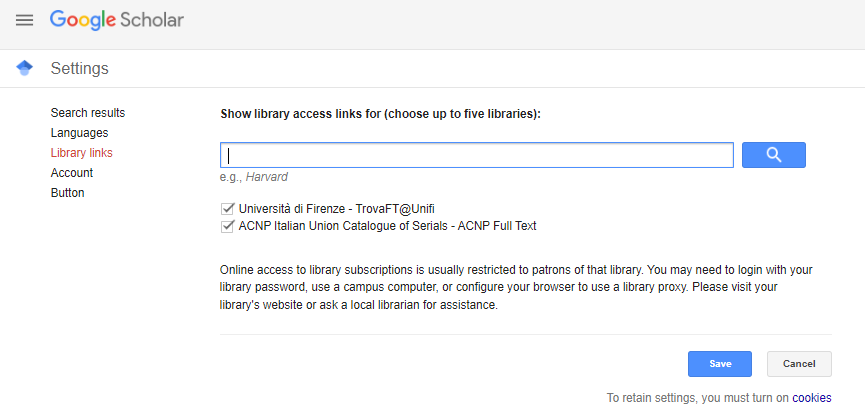
REMEMBER: when off Unifi premises, go to the Settings from the left navigation bar and click on Library links: this will activate the link resolver that allows you to see if the resource is included in Unifi subscriptions.
Transcript and translation
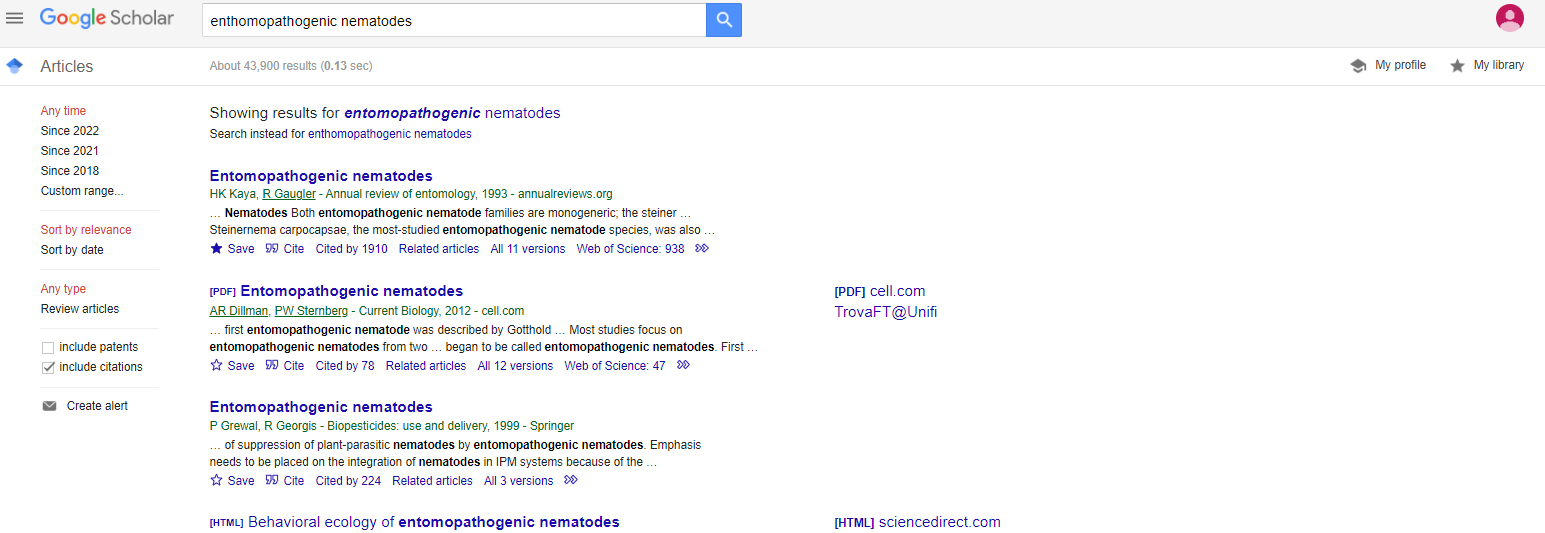
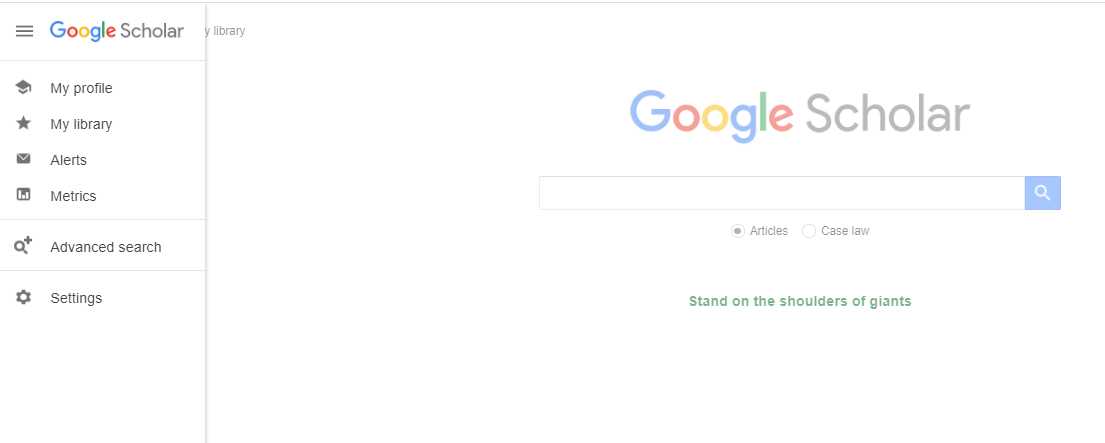
Connect to Google Scholar and, if not yet connected with your Google account, click on Log in at the top right: this will allow you to take advantage of all the tools at your disposal. From the search window try to launch a generic query on "entomopathogenic nematodes".Please note that if the document is available at Unifi, a link on the left will redirect you on Onesearch.
In every snippet you will find some options:
- Save: allows you to insert the result in your personal library, which can be accessed by clicking at the top right or from the hamburger menu on the left;
- Cite: allows you to obtain the bibliographical citation in different citation styles; you can also export it in one of the bibliographical references softwares (RMS, Reference Management Systems, we will see them further on);
- Cited by: gives you an idea of the notoriety of that resource, if you click on it a new list of results will appear, containing all the resources indexed by Scholar that cite that work;
- related articles: allows you to expand your search.
- All the versions: allows you to access all the versions of that resource, for verifying, for example, if they are accessible and through which platforms.