Searching on Google and Google Scholar
| Sito: | Attività formative complementari |
| Corso: | BiblioCompass: a guide to bibliographic search and library services for Agricultural Sciences 2025-2026 |
| Libro: | Searching on Google and Google Scholar |
| Stampato da: | Utente ospite |
| Data: | venerdì, 18 settembre 2026, 17:18 |
1. Searching on Google
Despite the different tools illustrated in this
course, we know that the temptation you will succumb to will be to open Google
and type in keywords freely.
Don't deny it. We all do it. The Google interface is so clean and easy to use, that it makes us think that the answer to all our questions is just a click away. But behind its apparent simplicity, Google hides potentials and pitfalls.
Google, like all search engines in general, is based on a system of indexing Web pages through spiders (also called crawlers or webbots), i.e. software that move around the network just like a spider on a spider web. The spider evaluates pages and websites, according to an algorithm never revealed, if not minimally. Based on the indications of Google and the experience of SEO experts (Search Engine Optimization, that is the technique of optimizing web content in relation to the characteristics of search engines; to learn more, we refer you to the next module), we can say that the results that appear to us after launching a search are displayed according to a certain order, or page ranking, which takes into account several factors, including:
- relevance, evaluated by the spider according to the presence of the keyword in certain sections of the web page (heading, body of the text, etc...)
- notoriety, based on the times the page is linked from other sources. According to Google, a page cited by multiple sources is more likely to be trusted. The reverse also applies: links and external references to other sites are considered an indication of quality content.
- reliability: a well-structured and constantly updated site and HTML page are considered by Google more reliable and so rewarded with a higher ranking.
2. How Google Scholar works
Google is a general search engine, which embraces sources of different
kinds and on different topics. However, if you intend to carry out a more
targeted and restricted to the academic field search, Google provides a
specific search engine, Google Scholar. It is very similar to Google, both for the graphic interface and for the indexing and ranking
mechanisms of the results. What makes the difference is the type of material
selected; in Scholar you will find:
- books
- articles from scientific journals
- conference papers
- technical reports
3. Searching Google Scholar
Tutorial: searching Google Scholar
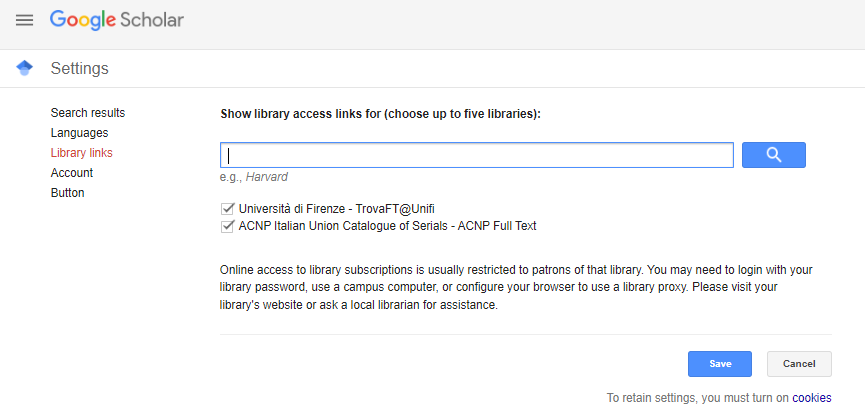
REMEMBER: when off Unifi premises, go to the Settings from the left navigation bar and click on Library links: this will activate the link resolver that allows you to see if the resource is included in Unifi subscriptions.
Transcript and translation
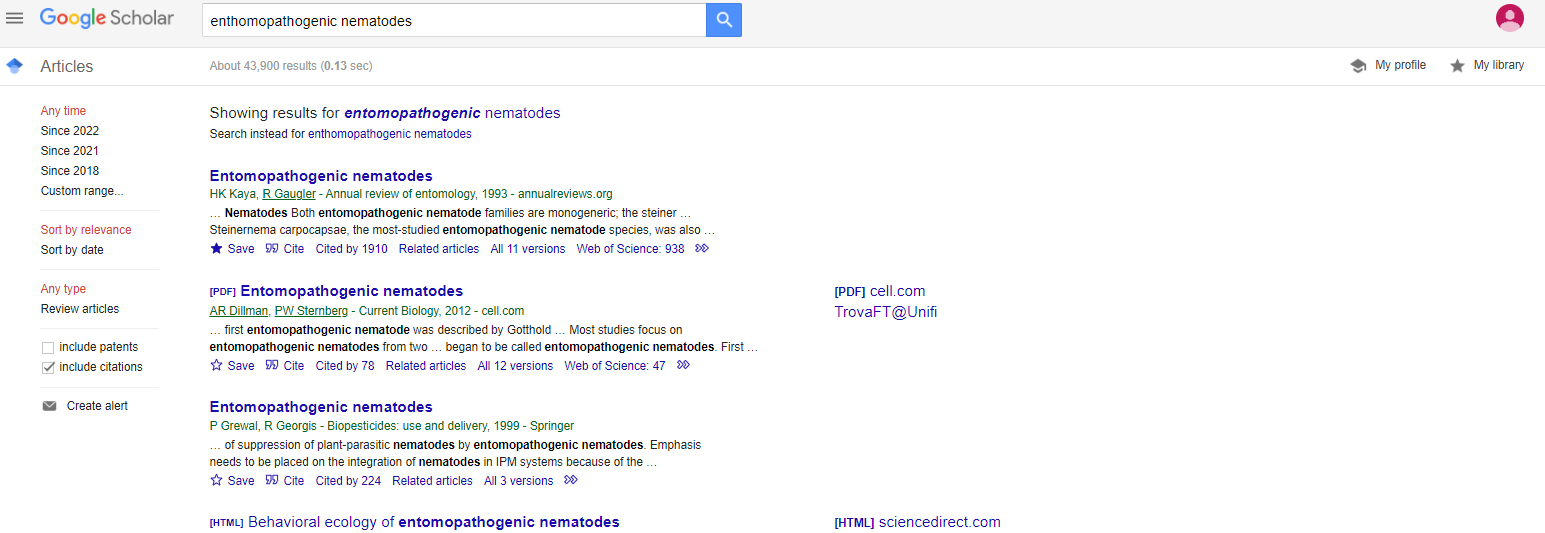
Connect to Google Scholar and, if not yet connected with your Google account, click on Log in at the top right: this will allow you to take advantage of all the tools at your disposal. From the search window try to launch a generic query on "entomopathogenic nematodes".Please note that if the document is available at Unifi, a link on the left will redirect you on Onesearch.
In every snippet you will find some options:
- Save: allows you to insert the result in your personal library, which can be accessed by clicking at the top right or from the hamburger menu on the left;
- Cite: allows you to obtain the bibliographical citation in different citation styles; you can also export it in one of the bibliographical references softwares (RMS, Reference Management Systems, we will see them further on);
- Cited by: gives you an idea of the notoriety of that resource, if you click on it a new list of results will appear, containing all the resources indexed by Scholar that cite that work;
- related articles: allows you to expand your search.
- All the versions: allows you to access all the versions of that resource, for verifying, for example, if they are accessible and through which platforms.
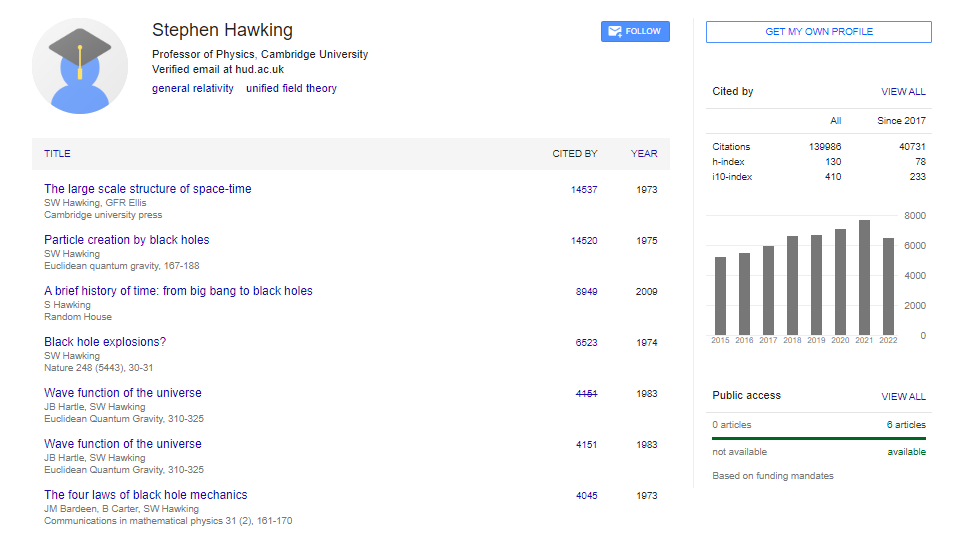
3.1. Follow an author
If you want to be notified every time the publications by a certain author are indexed by Scholar, you can look for his profile and click on Follow. If you click on the keywords in the heading, you will be redirected to profiles of other authores of the same fields of study.
3.2. Other options
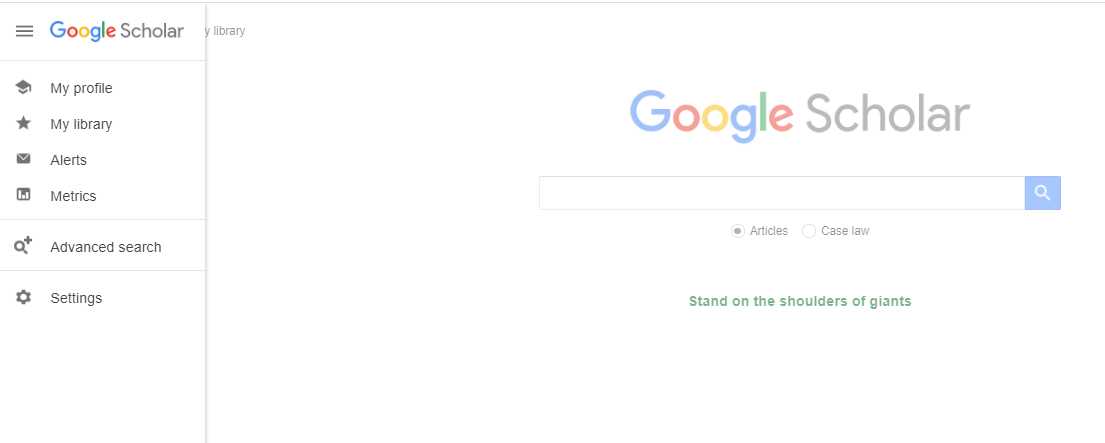
The hamburger menu allows you to
- choose a search by article or by profile
- manage your personal profile, in case you have your publications in Scholar
- get access to your library, in which you can organize results by applying labels.
- gestire il tuo profilo, qualora tu abbia tue pubblicazioni in Scholar, e di accedere alla tua biblioteca, nella quale puoi anche organizzare i risultati salvati attribuendo loro diverse etichette.
- add check and modify your alerts.
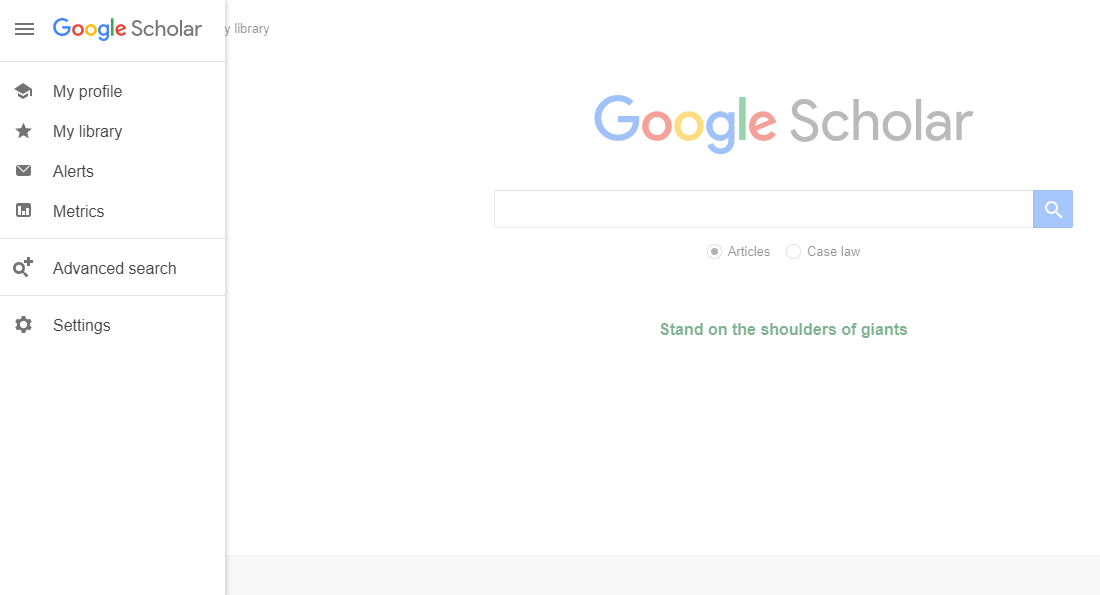
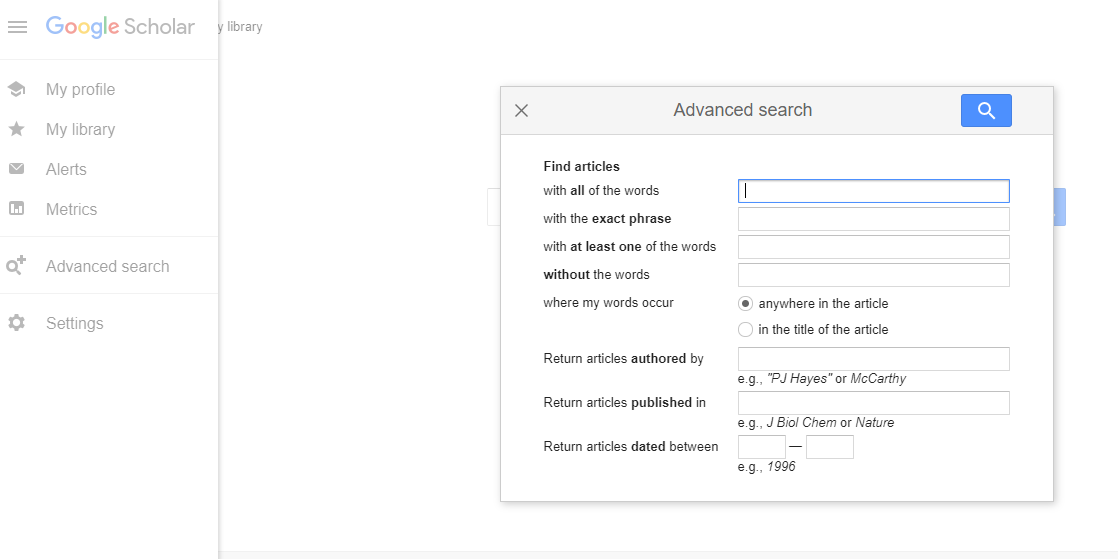
You can also launch an advanced search, by using boolean operators or specifying author, journal, year range.